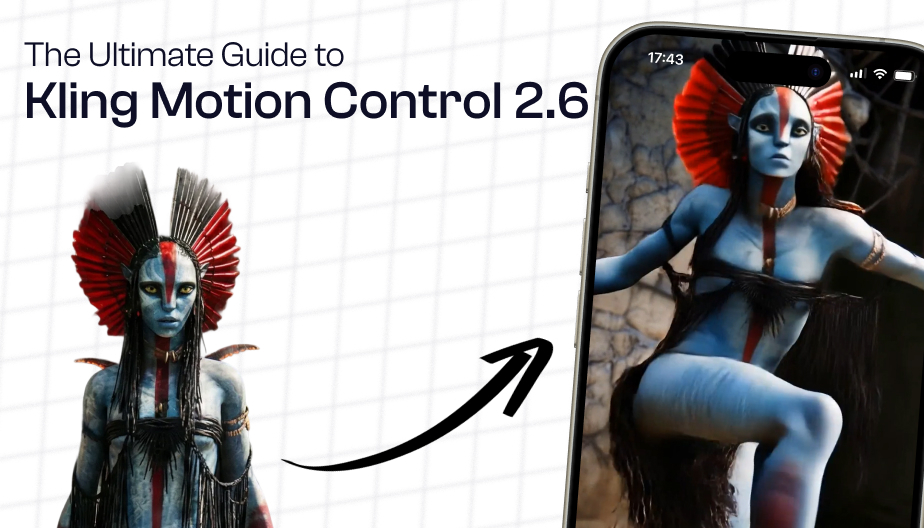


AI video generation has crossed a critical milestone. With the release of Kling VIDEO 2.6 Motion Control, creators no longer have to choose between realistic human performance and creative flexibility. For the first time, you can preserve authentic facial expressions, gestures, and timing from a real performance while completely changing who the character is, where they appear, and how the video looks.
And now, Kling Motion Control is available directly inside Wavel AI Studio, making high-quality motion transfer accessible without complex workflows or animation knowledge. This guide breaks down everything you need to know, from how Kling Motion Control works to prompting best practices, real-world use cases, pros and cons, and step-by-step workflows for creating motion-controlled videos on Wavel Studio. If you are building marketing videos, AI influencers, training content, or cinematic scenes, this is the definitive guide.
What Is Kling Motion Control, VIDEO 2.6?
Kling VIDEO 2.6 Motion Control is an advanced AI video generation feature that maps a real human performance from a reference video onto a new character created from an image. In simple terms, you upload a reference video (the performance), you upload a reference image (the new character), and Kling AI transfers facial expressions, gestures, and posture, body movement, timing, and emotional nuance while allowing you to completely redesign the character’s identity, style, and environment. Unlike traditional animation or motion capture tools, Kling Motion Control requires no manual rigging, tracking, or animation prompts. The system automatically preserves performance realism with impressive accuracy.
Why Kling Motion Control Is a Big Deal
Most AI video generators struggle with one key problem: believable human motion. Kling Motion Control solves this by separating performance (motion, expression, timing) and appearance (character, style, environment)
This means you can:
- Reuse one performance across multiple characters
- Maintain emotional consistency across versions
- Scale video production without reshoots
Inside Wavel AI Studio, this capability becomes even more powerful because you can combine motion control with AI dubbing, subtitles, background changes, and multi-format exports in a single workflow.
How Kling Motion Control Works on Wavel AI
The workflow is intentionally simple:
- Reference Image
Upload a single image of the character you want in the final video. - Reference Motion Video
Upload a video containing the performance you want to transfer. - Prompt for Style & Environment
Describe how the character should look and where they exist not how they move. - Generate Motion-Controlled Video
Kling VIDEO 2.6 maps the motion onto the character with preserved realism. - Enhance in Wavel Studio
Add captions, dubbing, background replacement, or export for different platforms.
This approach removes animation complexity while keeping creative control firmly in your hands.
Kling Motion Control Prompt Guide (Essential Reading)
When using Kling Motion Control, you do not need to describe motion, like:
- “Walking”
- “Hand movement”
- “Facial animation”
- “Emotion tracking”
Kling already handles all of that from the reference video. Your prompt should focus entirely on art direction.
Prompt Golden Rule
Describe how the character looks and where they exist, not how they move.
1. Focus on Character Attributes
Start by defining the final character appearance.
Describe:
- Clothing and styling (formal, casual, cinematic)
- Age range or personality
- Facial realism and lighting
- Overall visual tone
Example prompts:
- “Make the character appear as a polished corporate presenter in a tailored navy suit, realistic skin texture, professional grooming.”
- “Turn the character into a casual lifestyle creator wearing soft neutral clothing with natural facial details and relaxed presence.”
- “Style the character as a cinematic lead with dramatic lighting, subtle shadows, and high-end film realism.”
2. Direct the Background
Motion is already preserved, so place the character intentionally. Describe environment type, depth and lighting and mood or atmosphere.
Example prompts:
- “Place the character in a modern office with glass walls, soft daylight, and shallow depth of field.”
- “Replace the background with a clean virtual studio featuring a subtle gradient and spotlight lighting.”
- “Set the scene in a cinematic city interior with warm tones and ambient light.”
Tip: If you only want to change the background later, Wavel AI’s background changer makes this effortless.
3. Adjust Visual Style & Production Quality
Control the finish, not the performance.
Describe:
- Camera feel
- Color grading
- Realism level
Example prompts:
- “Apply cinematic color grading with realistic shadows and film texture.”
- “Use clean commercial lighting suitable for a brand marketing video.”
- “Make it feel like high-quality social media UGC with natural lighting.”
4. Change Identity, Role, or Context
You can completely redefine who the character is.
Example prompts:
- “Turn the character into a tech startup founder announcing a new product.”
- “Make the character a virtual instructor in an online learning environment.”
- “Style the character as a keynote speaker on a professional stage.”
5. Recommended Prompt Structure
[Character style + Environment + Visual quality]
Full prompt example:
“Style the character as a confident marketing spokesperson wearing modern business attire, placed in a clean virtual studio with soft lighting and shallow depth of field, cinematic realism, professional commercial quality.”
Pros of Kling Motion Control on Wavel AI
- Exceptionally realistic facial expressions and gestures
- No animation or motion prompts required
- One performance can power unlimited variations
- Ideal for marketing, education, and storytelling
- Seamless integration with dubbing, subtitles, and background tools
- Scales video production without reshoots
Cons & Limitations (Being Honest)
- Requires a good-quality reference video for best results
- Extreme camera movements in reference videos may reduce accuracy
- Less manual control compared to traditional 3D animation (by design)
- Not intended for exaggerated cartoon-style motion
For realistic, human-centered video, these trade-offs are more than worth it.
10 High-Impact Use Cases for Kling Motion Control
1. Marketing & Brand Spokesperson Videos
Reuse a single performance across brand ambassadors, mascots, or regional variants while preserving eye contact, gestures, and delivery.
Prompt example
“Professional brand spokesperson wearing modern corporate attire, clean virtual studio, neutral lighting, commercial-grade realism.”
2. Corporate Training & Internal Communication
Create consistent training videos without multiple shoots. Swap presenters or backgrounds while keeping body language intact.
3. AI Influencers & Virtual Creators
Build believable AI creators that inherit authentic human energy for TikTok, Reels, and Shorts.
4. Film & Narrative Storytelling
Swap characters in emotional scenes without reshooting — perfect for short films and experiments.
5. Product Demos & Explainers
Preserve hand gestures and pacing while transferring demos onto branded avatars.
6. Educational Content & Online Courses
Deliver authoritative teaching with consistent gestures, posture, and clarity.
7. Gaming & Virtual Characters
Animate NPCs or avatars using real human performances for immersive experiences.
8. Music, Dance & Performance Art
Map choreography and rhythm onto stylized or animated characters.
9. Localization & Multilingual Videos
Maintain consistent performance across languages while swapping characters and voiceovers.
10. Social Media & UGC-Style Content
Create authentic, platform-native videos without repeated filming.
Workflows: Using Kling Motion Control Inside Wavel Studio
Typical Workflow
- Upload reference image
- Upload performance video
- Apply Kling Motion Control
- Enhance with:
- AI dubbing
- Captions & subtitles
- Background changes
- Export for social, ads, or training platforms
This unified workflow is where Wavel Studio shines turning advanced AI models into practical production tools.
Other AI Models for Motion Control (Quick Comparison)
- Kling Motion Control — cleanest results, simplest prompts
- Wan 2.2 Replace — budget-friendly motion transfer
- Runway Act-Two — highly realistic, premium pricing
Kling strikes the best balance between realism, control, and scalability.
Final Thoughts: Why Kling Motion Control Matters
Kling VIDEO 2.6 Motion Control isn’t just a feature upgrade, it’s a shift in how video is created. By separating performance from appearance, creators gain speed, consistency and creative freedom. Combined with Wavel AI Studio’s editing, localization, and enhancement tools, it becomes a production system, not just a generator. If your goal is to create human-feeling videos at scale, Kling Motion Control is no longer optional. It’s foundational.
